

Quick support
Get quick and reliable remote assistance from our dedicated support team.
For Windows users
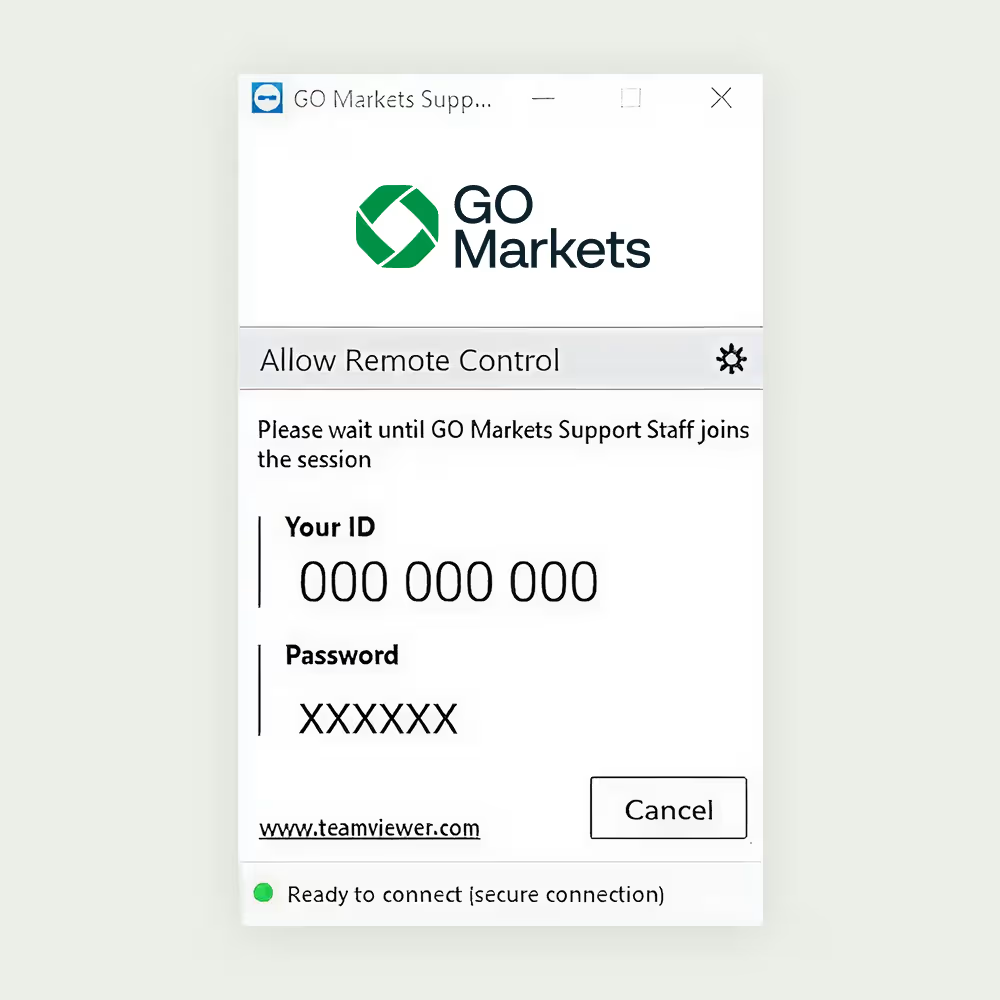
Allow remote control access
1. Run GO Markets quick support by double clicking on the’ TeamViewQS’ Application.
2. Read the disclaimer and click ‘Accept’.
3. Provide your ‘TeamViewer ID’ and ‘Password’ to the GO Markets support team every time you need help.
For Mac users
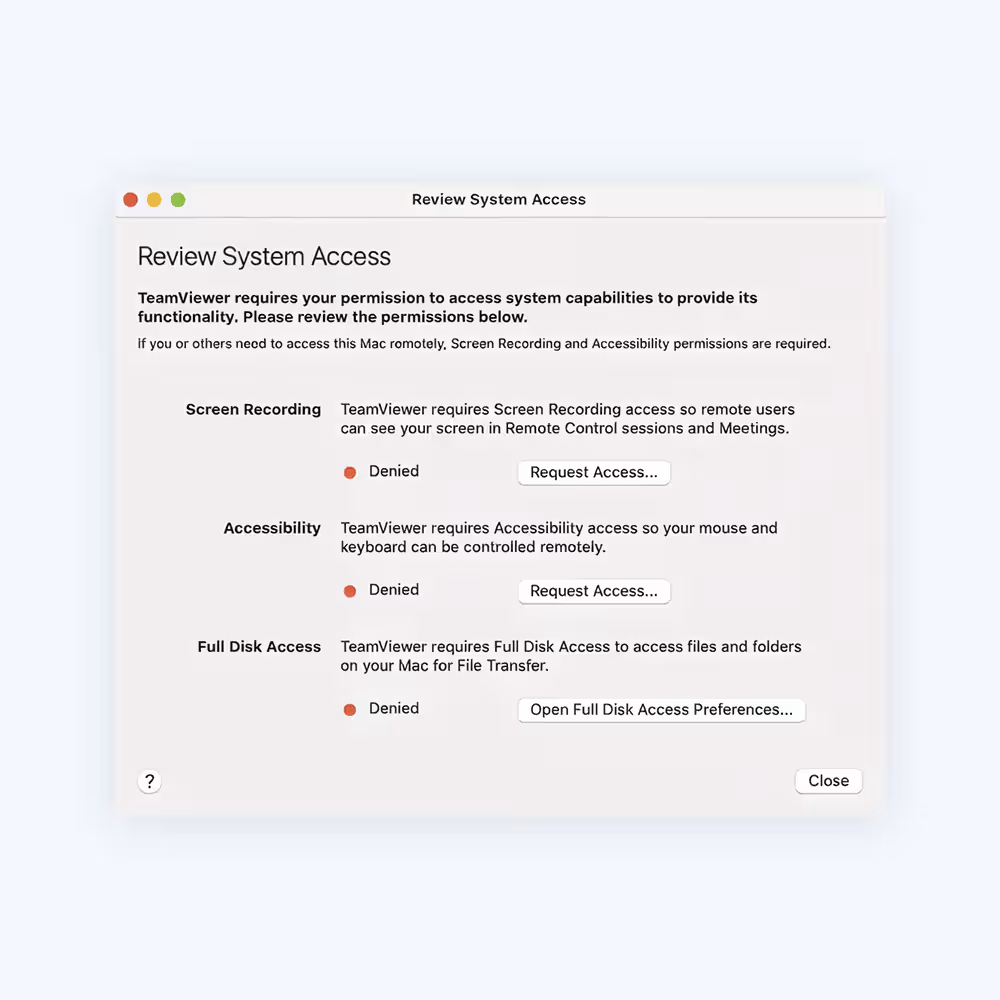
How to grant access to TeamViewer on your Mac
When you start TeamViewer on your Mac for the first time, you may see the dialog shown in the image on the left.
You can also open this dialog by clicking on Help > Check system access.
To allow remote control a Mac, you will need to give permission for:
• Screen Recording (Screen Recording permission is not needed on macOS 10.14 Mojave) and accessibility.
• To use file transfer, you will need to give permission for: Full Disk Access
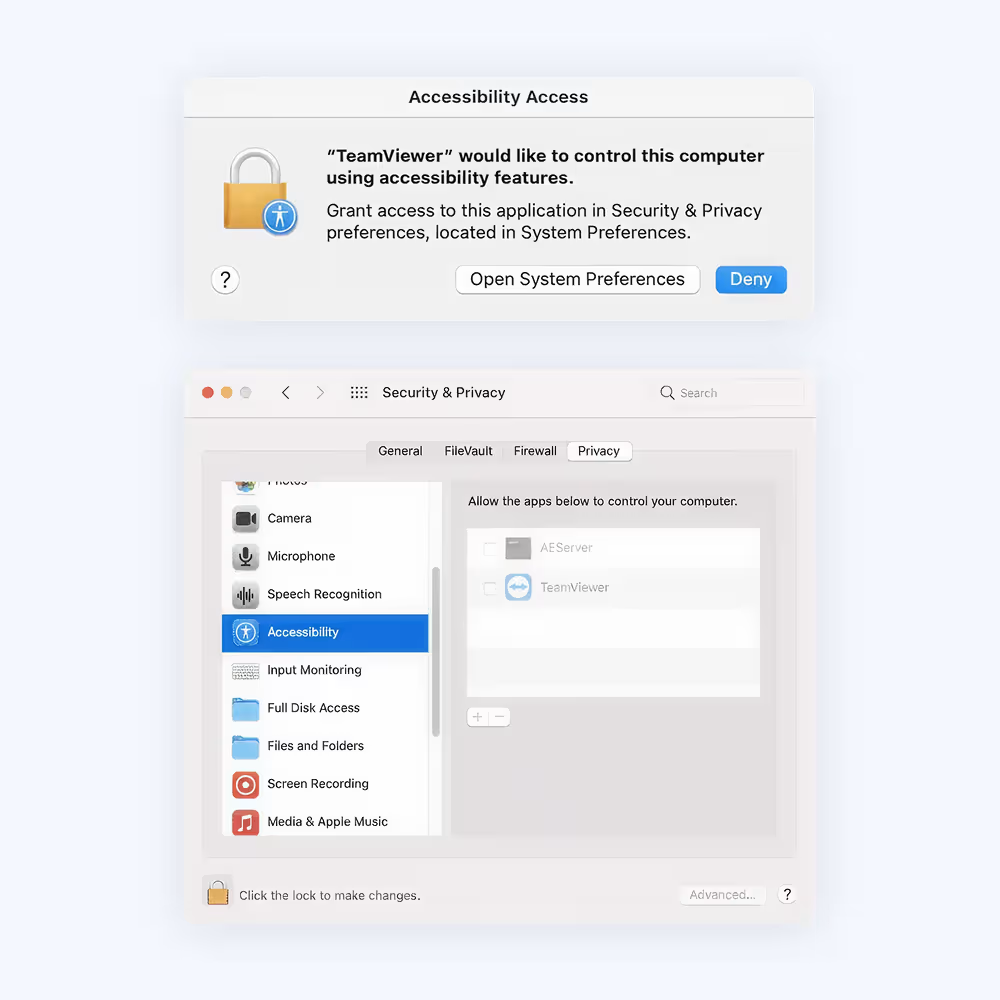
How to allow access
To allow access, click each button in the dialog. This will take you to the corresponding setting in the Security & Privacy preferences.
In this example, we will use Accessibility. Click the Request Access button to the right of Accessibility.
As shown in the dialog image on the right, click Open System Preferences.
This will take you to the Accessibility section of the Security & Privacy preferences.
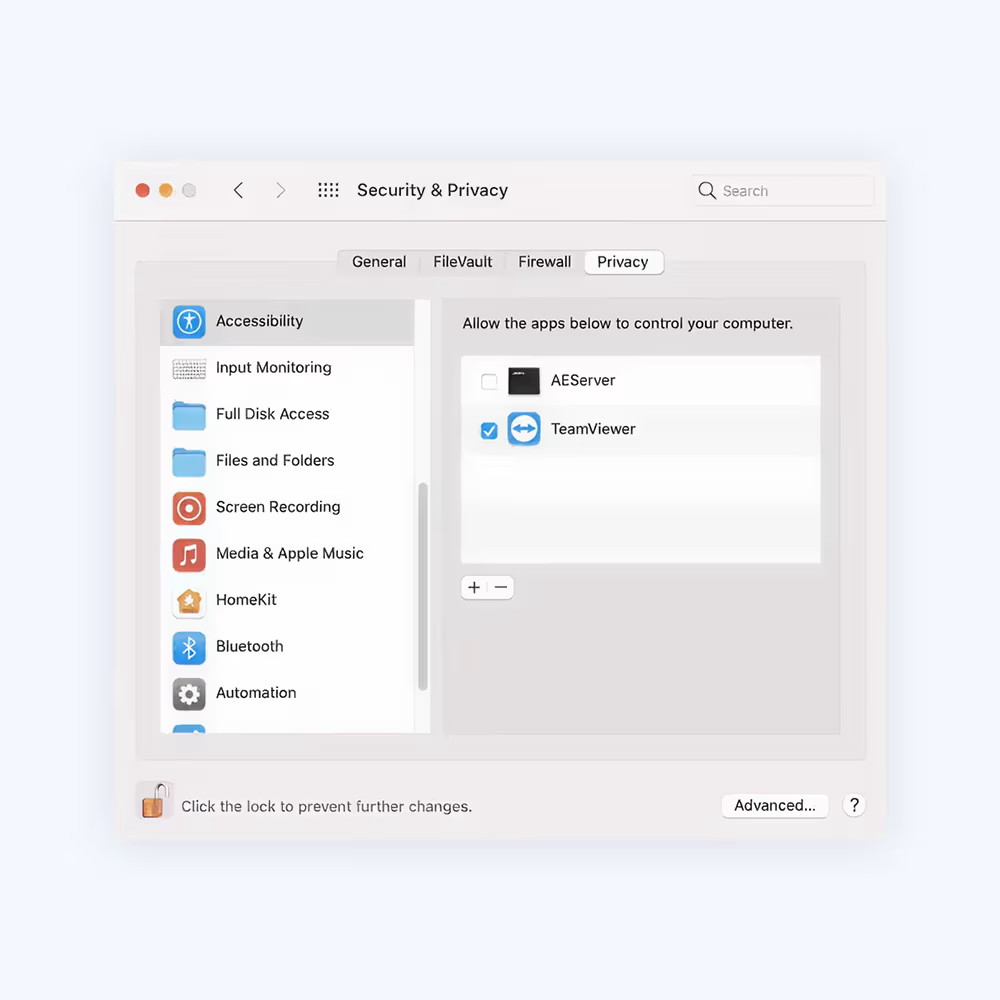
You may need to click the padlock icon in the lower-left corner to make changes. You might be prompted to enter an administrator account’s credentials to continue.
Check the box next to TeamViewer to grant access, as shown in the image on the left.
Note:
If you see an app in the list titled TeamViewer_Desktop, make sure to check this box as well.
Go back to TeamViewer, and repeat the same process for the other permissions.
When you are done, you may click the padlock in the lower-left corner again to prevent further changes.
The next time you want to receive an incoming connection with TeamViewer, the person connecting to your Mac will be able to see and control your device.
The permission status can be reviewed under Help > Check system access at any time.